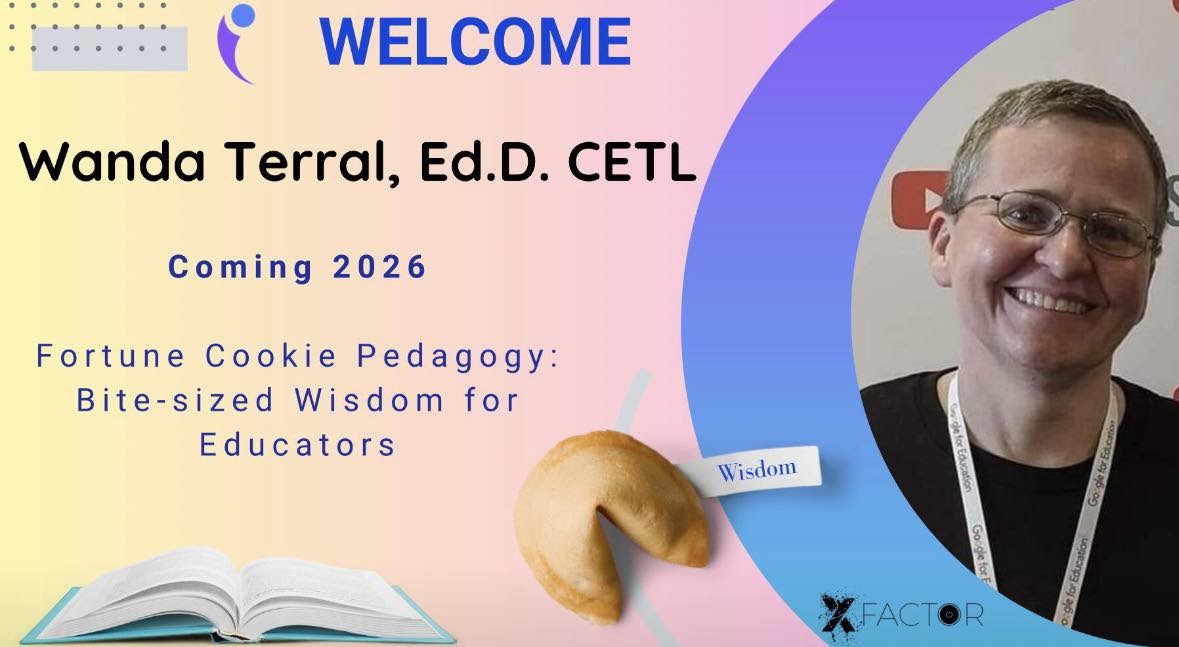
As you can tell from looking at this site, I don’t update it often. I did want to share that I have been working on my first book. You can read more about it at fortunecookiepedagogy.com. Especially check out the Chapters and Contributors page to see what is coming next. The bulk of the book is finished and will be coming to you through publisher X-Factor EDU.
I attended the virtual path of #ISTELive this past week. I presented virtually on the first day and watched a number of the other virtual sessions as well as those being streamed from San Antonio, TX.
It’s been a number of years since I attended in person. I have found that as I get older, I prefer the smaller conferences but I do get a little FOMO while watching my friends post and share. In the end, I am glad I stayed home and attended as I did.
I was most pleased with the ability to watch so many streamed ASCD session since the two conferences were combined this year. It highlighted to me an important reminder: it’s incredibly easy to get caught up in the shiny new tech tools and inadvertently bypass sound pedagogy. Watching sessions truly focused on pedagogy and learned was definitely a benefit over years past.
By far the majority of my session evaluations were positive and appreciative. There were two that weren’t and they have set up camp in brain but I am trying to take them in stride and will certainly consider that feedback as well for any future presentations.
I was very surprised and honored to see that eSchoolNews posted an article, “10 (and counting…) Google goodies for your classroom,” about 10 of the resources in my session resource. My goal with this 10 year old Google Doc has always been focused on sharing but I never dreamed that it would still be alive and kicking. I am reminded of a past trip to the Google offices in Atlanta, GA. When I was riding the elevator down after the event, the other passenger asked how she knew me because I looked familiar. I shared some of the events I had been to and socials I use. She shook her head and eventually said, “Gobs of Goodies!” That memory always brings a smile to face.
Overall, my virtual #ISTELive experience was a rewarding one, reinforcing the importance of pedagogical focus and reminding me of the unexpected ways sharing can impact others.
What was your biggest takeaway from #ISTELive this year, whether you attended virtually or in person?
I have created a number of Chrome extensions to meet specific needs of my district. This extension hides textbox editor for posting Google Classroom announcements.
By default, when a new Google Classroom is created, the Stream is set to ‘Students can post and comment’ but that can lead to issues if the Classroom is not monitored by the teacher. In our district we prefer to have the Stream set to ‘Students can only comment’ but there is no way for a Google Admin to change that default. To prevent teachers from needing to go into every Google Classroom that is auto-generated by the Google Admin to change the setting, installing this extension will prevent students from posting announcements to the Stream even if the setting has not been changed by the teacher. This does NOT prevent them from commenting on posts made by the teacher.
Google admins wanting to use this in their domains should force install this extension on student Google accounts with Developer Tools disabled otherwise they could use the Inspect Tool.
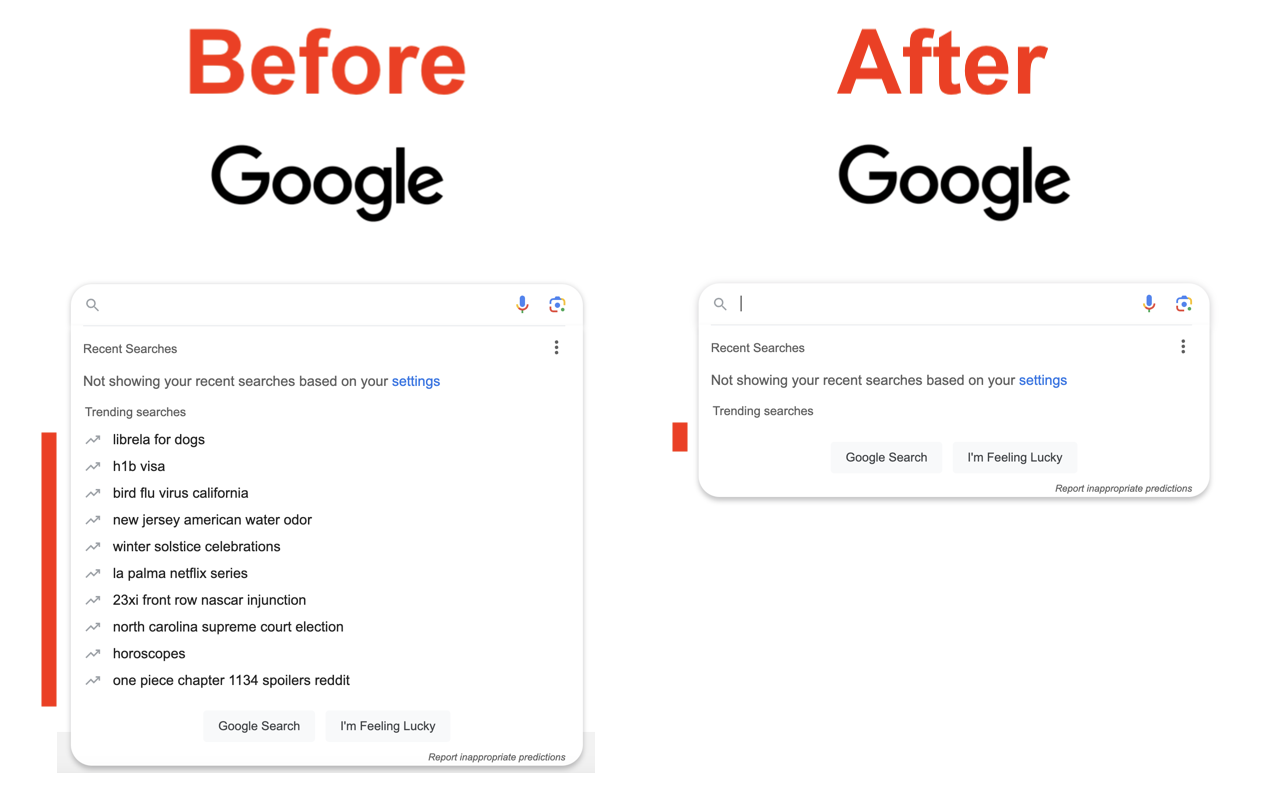
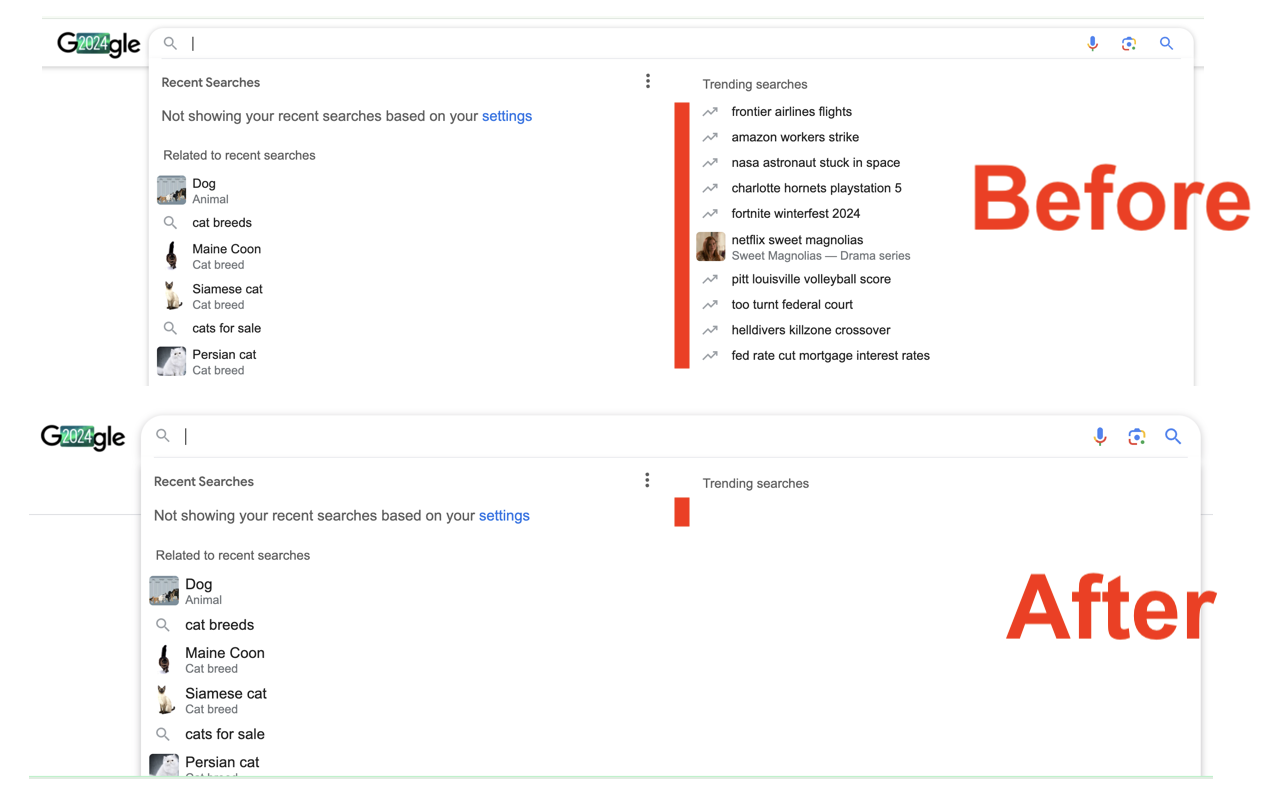
This extension hides the trending searches suggestions on the search box on google.com. Sometimes the “Trending searches” suggestions on Google Search are not necessarily school-appropriate. Google admins don’t have the capability to disable those from being displayed. This extension will hide those Google Search suggestions that are shown under “Trending searches” without hiding the other search suggestion subtypes. Google admins wanting to use this in their domains should force install this extension on student Google accounts with Developer Tools disabled otherwise they could use the Inspect Tool.
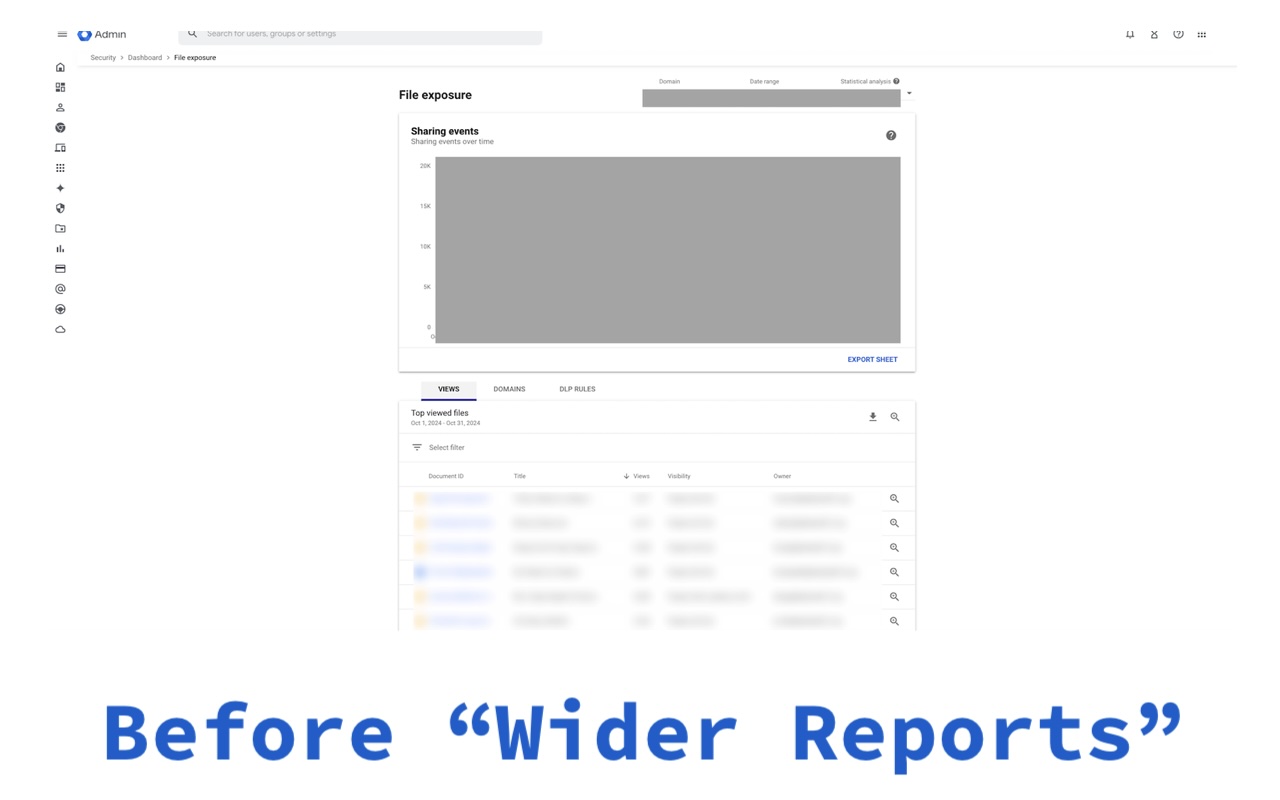
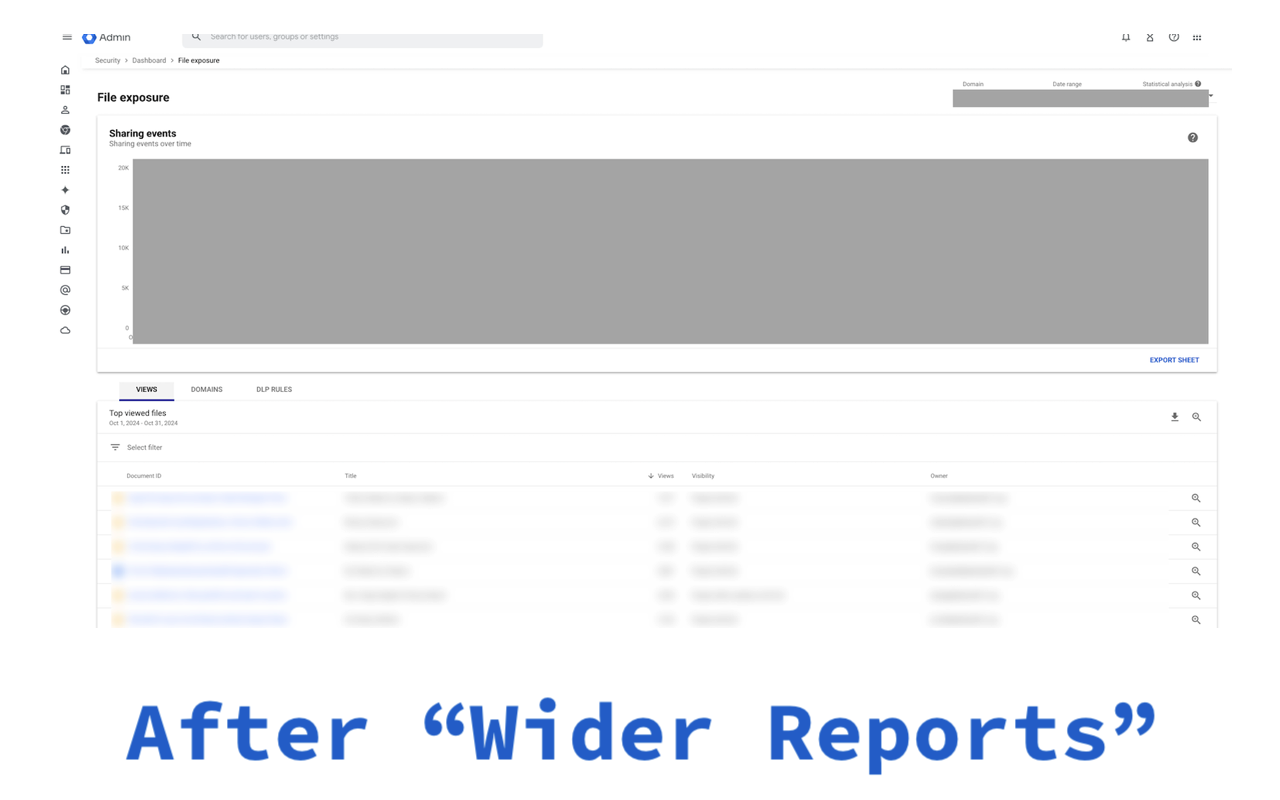
I have created a number of Chrome extensions to meet specific needs of my district. This one just published is for me and my fellow Google admins and fixes one of my pet peeves of the Security Center Dashboard. When you click a VIEW REPORT link, the report is shown but in a very narrow table. All kinds of wasted space left and right when a wider table would be so much more user-friendly. Dug in and found a way to adjust the style sheet to give me wider reports. Sharing the goodness here.
This extension ONLY runs with URLs beginning with https://admin.google.com/ac/sc/dashboard and the only thing it does is change the DIV class of .gCXDaf to have no max-width.
I was honored to be invited to help present during two of the H2 2024 Product Training Series webinars offered by Google for Education. Check them out at the links below:
Unlock your Google Classroom: Interactivity and Differentiation with Classroom Updates – Link to event page – Recorded October 15, 2024. “Discover how the latest Google Classroom updates can transform your teaching with enhanced interactivity and tailored learning experiences. In this session, we’ll explore powerful new features designed to elevate student engagement and assist educators in differentiating their instruction to meet their students where they are. Join us for your key to unlocking the full potential of Google Classroom!”
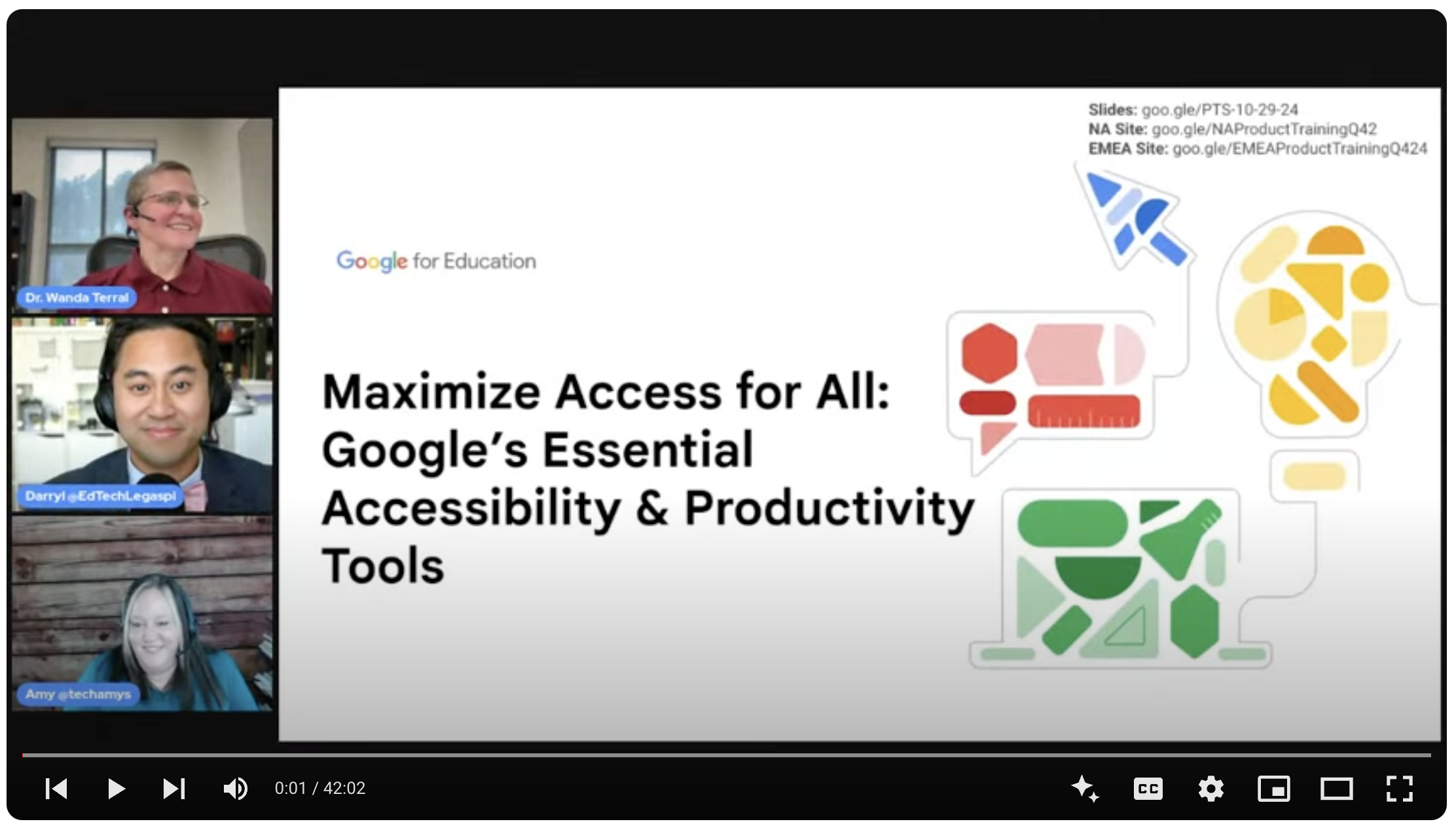
Maximize Access for All: Google’s Essential Accessibility & Productivity Tools – Link to event page – Recorded October 29, 2024. “Leverage the capabilities of Google Workspace for EDU with essential accessibility and productivity tools that ensure every student can excel. In this session, you’ll learn how to enhance access and boost efficiency in your classroom, empowering all learners to succeed.”
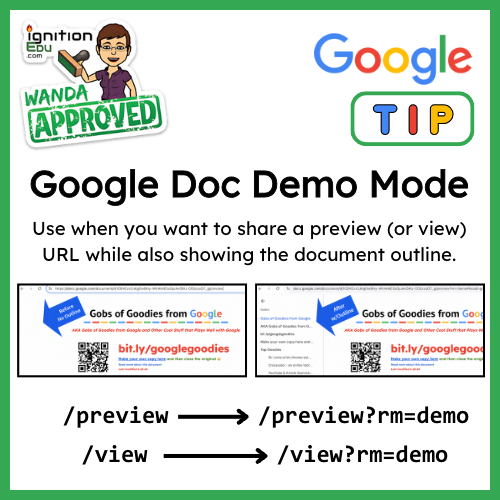
Google Tip: When you want to share a PREVIEW or VIEW version of a Google Doc URL AND you also want to have your document outline visible, change the URL by adding ?rm=demo to the end.
My school district was honored to have been featured in this video about Google Workspace for Education Plus for their partner CDW Amplified for Education (formerly Amplified IT).
UPDATE November, 2023: Unfortunately, the video was removed so I removed the embedded video. It was a really neat experience though.
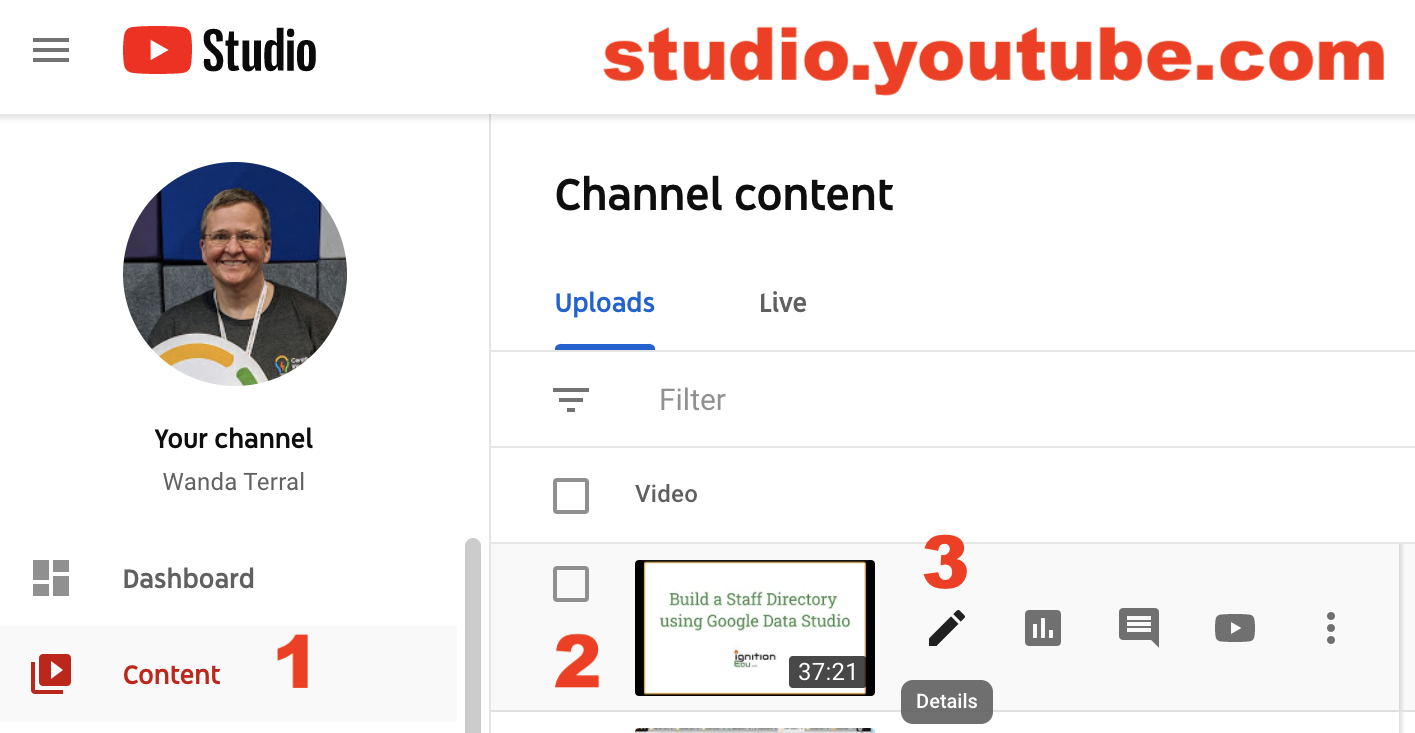
Hover over the video for which you wish to edit the subtitles. Click on the pencil icon to go to edit the video’s details.
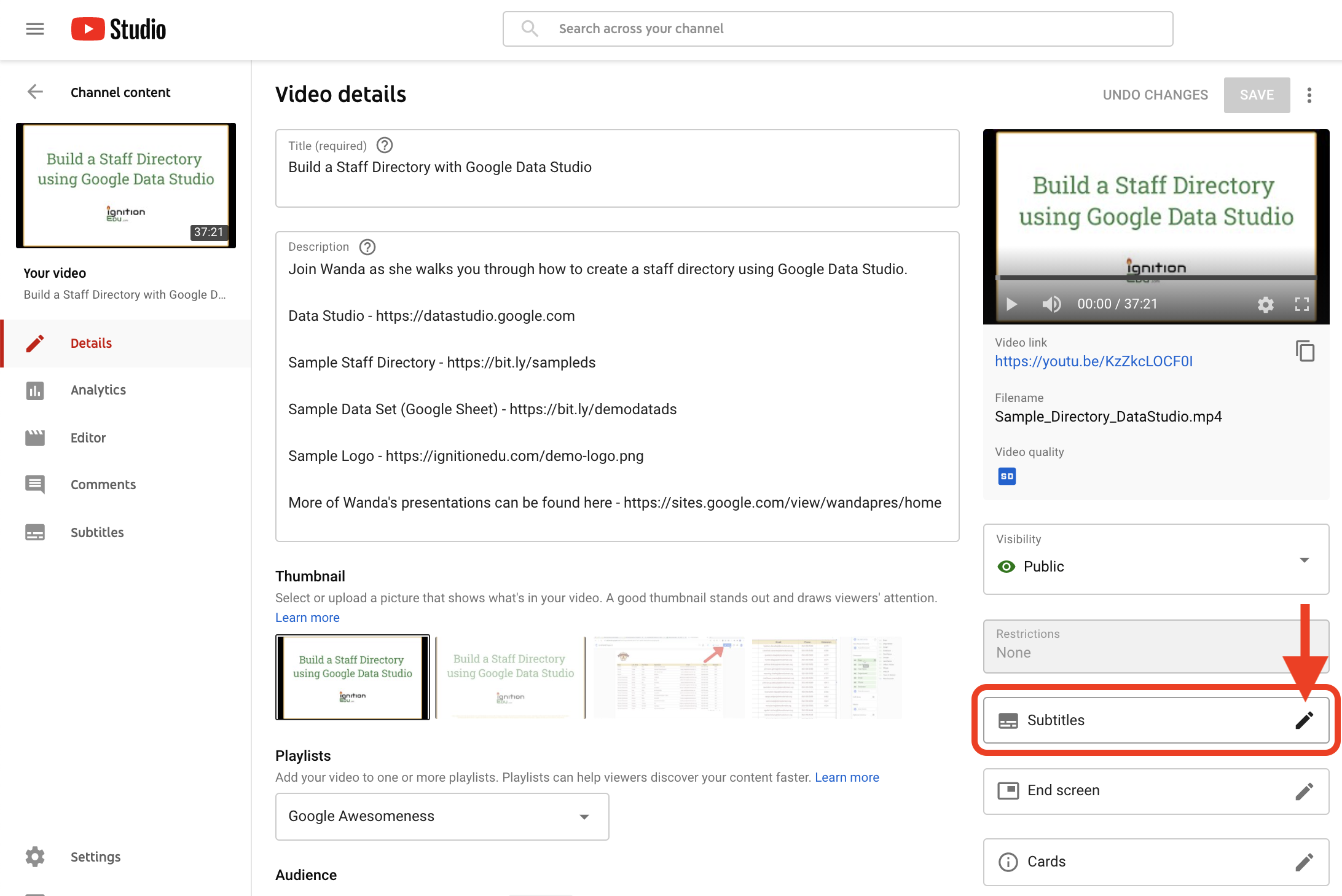
4. In the right sidebar, click the pencil icon on the Subtitles button.
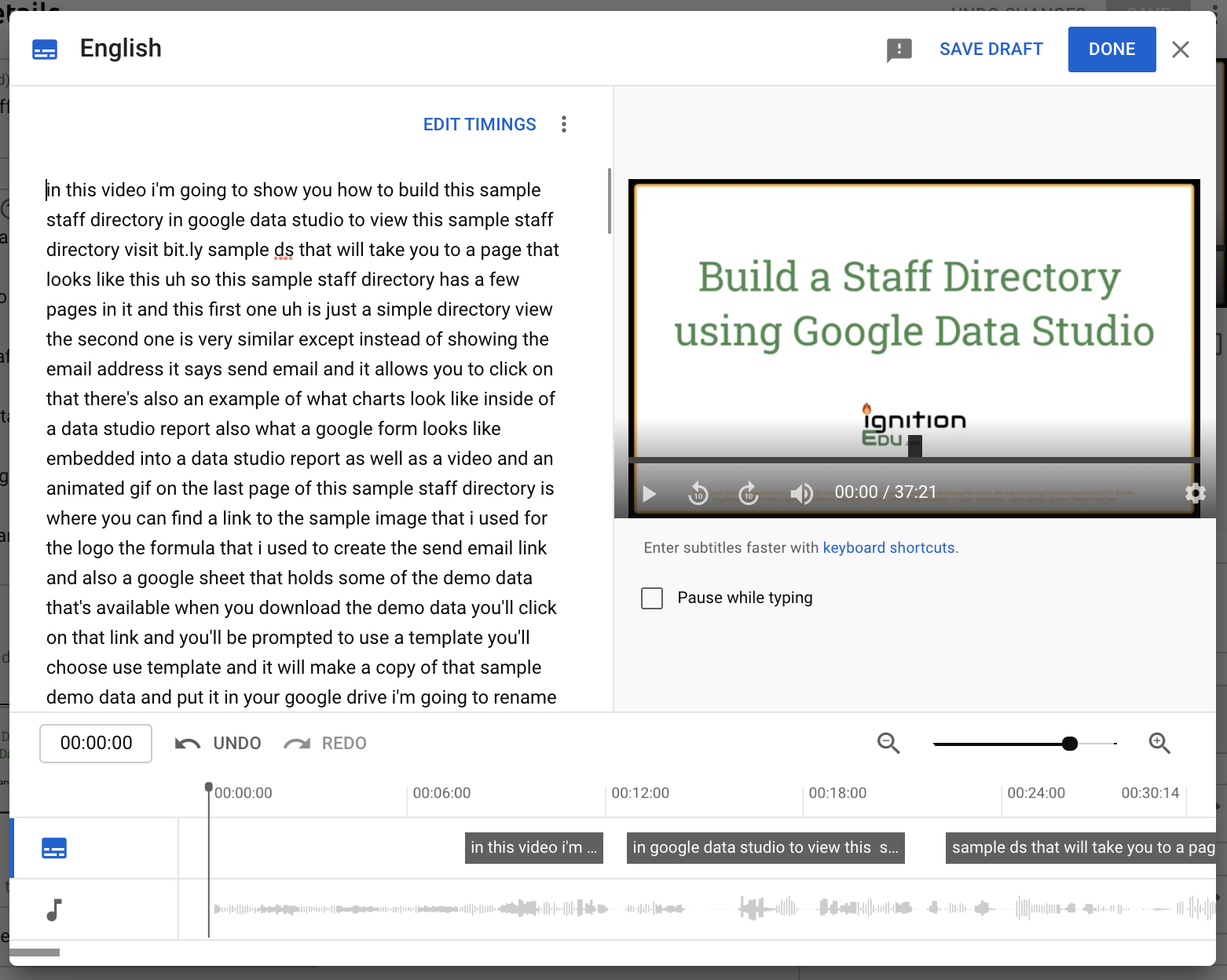
5. Edit the subtitle text and/or adjust the timings. Save your draft frequently or you could lose your work. When everything is as you wish it to be, click DONE.